728x90
SMALL
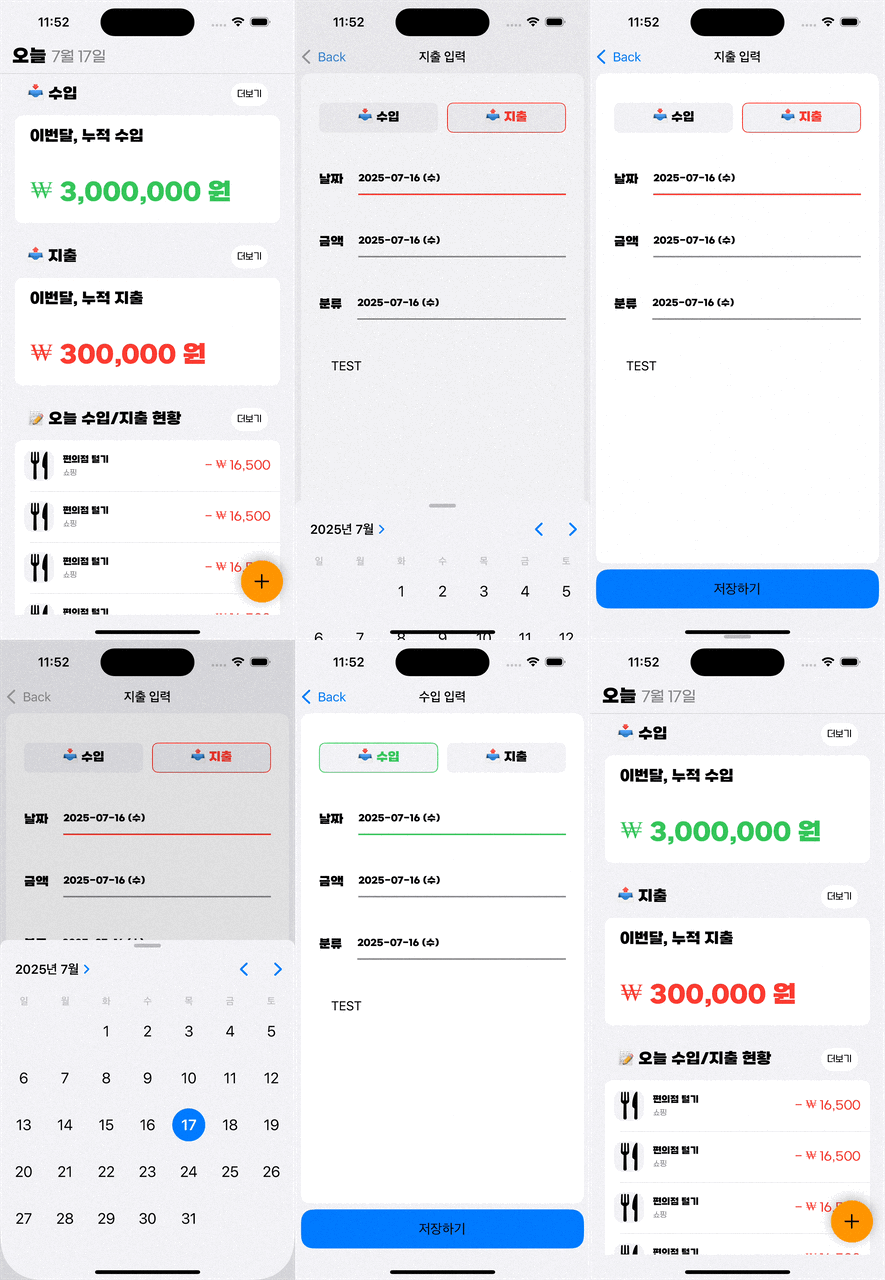
✅ 목적 정리
- TransactionType (수입/지출) 선택 시
- .income → .systemGreen
- .expense → .systemRed
- 이 타입 선택이 되면,
- 자동으로 다음 입력 필드인 날짜(Date) 필드의 valueLabel이 선택된 것처럼 처리됨
- 이때 해당 셀의 separator 색상이 타입에 따라 바뀜
- 이후 사용자가 금액(Amount), 분류(Category) 필드의 valueLabel을 탭하면
- 해당 셀의 separator가 강조 색상으로 바뀌고
- 이전에 선택된 셀은 강조 해제되어 .secondaryLabel 색상으로 복귀됨
🧱 구성된 컴포넌트 및 구조
🔹 Enum 정의
enum TransactionType {
    case income, expense
}

enum AddSection: Int, CaseIterable {
    case addType, date, amount, category, memo

    var title: String {
        switch self {
        case .date: return "날짜"
        case .amount: return "금액"
        case .category: return "분류"
        default: return ""
        }
    }
}
💡 구현 흐름 정리
1. 사용자가 AddTypeCell에서 .income 또는 .expense 선택
→ selectedTransactionType 변경
→ 자동으로 selectedIndexPath = .date 섹션 선택
→ addTableView.reloadData()로 리프레시
→ date 셀이 선택된 것처럼 강조 표시
2. 테이블의 각 셀은 공용 AddCustomCell 사용
- 이 안에는 valueLabel, separator가 존재
- updateSeparatorColor(isSelected:transactionType:) 메서드로 선택 여부/타입에 따라 색상 변경
3. 이후 다른 셀을 선택하면
- selectedIndexPath 갱신
- 전체 reload를 통해 "새로 선택된 셀만 강조, 이전은 해제" 구조 유지
🔧 핵심 코드 설명
✅ AddTypeCell.swift
// MARK: - Action Method
@objc private func buttonTapped(_ sender: UIButton) {
    selectedType = sender.tag == 0 ? .income : .expense
    delegate?.didSelectTransactionType(selectedType!)
}- 각 버튼이 눌리면 selectedType에 선택된 type의 정보를 전달
- delegate 패턴을 통해 메서드를 동작
protocol AddTypeCellDelegate: AnyObject {
    func didSelectTransactionType(_ type: TransactionType)
}- 어떤 type의 버튼이 눌렸는지 정보를 전달할 목적의 delegate 패턴 구현
func tableView(_ tableView: UITableView, cellForRowAt indexPath: IndexPath) -> UITableViewCell {

    guard let section = AddSection(rawValue: indexPath.section) else { fatalError("Invalid section") }

    switch section {
    case .addType:
        guard let cell = tableView.dequeueReusableCell(withIdentifier: AddTypeCell.reuseIdentifier, for: indexPath) as? AddTypeCell else { return UITableViewCell() }
        cell.delegate = self
        cell.selectionStyle = .none
        cell.configure(selectedType: selectedTransactionType)
        return cell
...- AddTypeCell의 상위 뷰인 AddTransactionViewController에서 해당 셀을 통해 tableview를 구현
- cell의 delegate를 AddTransactionViewController로 설정
extension AddTransactionViewController: AddTypeCellDelegate {
    func didSelectTransactionType(_ type: TransactionType) {
        selectedTransactionType = type
    }
}- AddTypeCell에서 선택한 type의 정보를 상위 뷰인 AddTransactionViewController에 전달함에 따라 didSelectTransactionType 메서드를 통해 데이터 전달
class AddTransactionViewController: UIViewController {


    // MARK: - Variable
        private var selectedTransactionType: TransactionType = .expense {
        didSet {
            // 수입 / 지출 버튼이 선택되면 자동으로 date 섹션이 선택된 걸로 간주
            selectedIndexPath = IndexPath(row: 0, section: AddSection.date.rawValue)
            updateTitle()
            self.addTableView.reloadData()
        }
    }
private var selectedIndexPath: IndexPath?- selectedTransactionType 에 프로퍼티 감시자를 통해 값의 변화에 따라 메서드 실행
- selectedIndexPath는 어떤 셀이 "선택되었다" 라는 정보를 저장
- IndexPath(row: 0, section: AddSection.date.rawValue)
- row 0: AddSection.date 섹션의 첫 번째 셀 (현재 모든 섹션에는 1개의 셀만 있으므로 항상 0)
- section: AddSection.date.rawvalue: 날자(Date) 섹션에 해당
👉 수입/지출 버튼을 탭하면
→ 자동으로 "날짜(Date)" 셀이 선택된 것처럼 처리하고
→ separator가 수입이면 초록색, 지출이면 빨간색으로 바뀌게 되는 겁니다.
func tableView(_ tableView: UITableView, cellForRowAt indexPath: IndexPath) -> UITableViewCell {

        guard let section = AddSection(rawValue: indexPath.section) else { fatalError("Invalid section") }

        switch section {

        case .date, .amount, .category:
            guard let cell = tableView.dequeueReusableCell(withIdentifier: AddCustomCell.reuseIdentifier, for: indexPath) as? AddCustomCell else { return UITableViewCell() }
            cell.configure(title: section.title)
            cell.selectionStyle = .none
            cell.delegate = self

            let isSelected = (indexPath == selectedIndexPath)
            cell.updateSeparatorColor(
                isSelected: isSelected,
                transactionType: selectedTransactionType
            )

            // 셀의 valueLabel 탭 제스처 연결
            cell.onValueLabelTapped = { [weak self] in
                self?.selectedIndexPath = indexPath
                self?.addTableView.reloadData()
                // 여기에 calendarView 또는 numberPad 띄우는 로직도 추가
}- 각 case에 따라 선택 유무에따라 cell에 UI 변경
- onValueTapped: AddCustomCell 에서 선언한 클로저로써, valueLabel이 탭 되었을 때 이를 감지하여 눌렸다는 정보를 전달
    // ✅ AddCustomCell 에서 구현

    func updateSeparatorColor(isSelected: Bool, transactionType: TransactionType) {
        if isSelected {
            switch transactionType {
            case .income:
                seperator.backgroundColor = .systemGreen
            case .expense:
                seperator.backgroundColor = .systemRed
            }
        } else {
            seperator.backgroundColor = .secondaryLabel
        }
    }
728x90
LIST
'Project > ReceiptMind' 카테고리의 다른 글
| 📊 Swift로 주간 수입·지출 요약 만들기 (2) | 2025.07.29 |
|---|---|
| 🧾 계산기 구현하기 (0) | 2025.07.17 |
| 🤷 별도의 선택 UI를 띄우고, 값을 보여주는 용도라면? UILabel vs UITextField (2) | 2025.07.17 |
| 👍 ChartsView 생성하는 방법! (0) | 2025.07.15 |
| ✅ UIButton의 .menu를 이용해서 띄우는 UIMenu는 시스템이 자동으로 표시하고, 그동안 버튼의 백그라운드 UI (예: arrow 바꾸기)는 우리가 직접 제어할 수 없어! (1) | 2025.07.11 |


